How to make a book-cover grid for Instagram
Choose nine books, arrange their covers in a 3×3 grid, and share your reading favorites or a themed list.
Reviewed · By Fav Tings
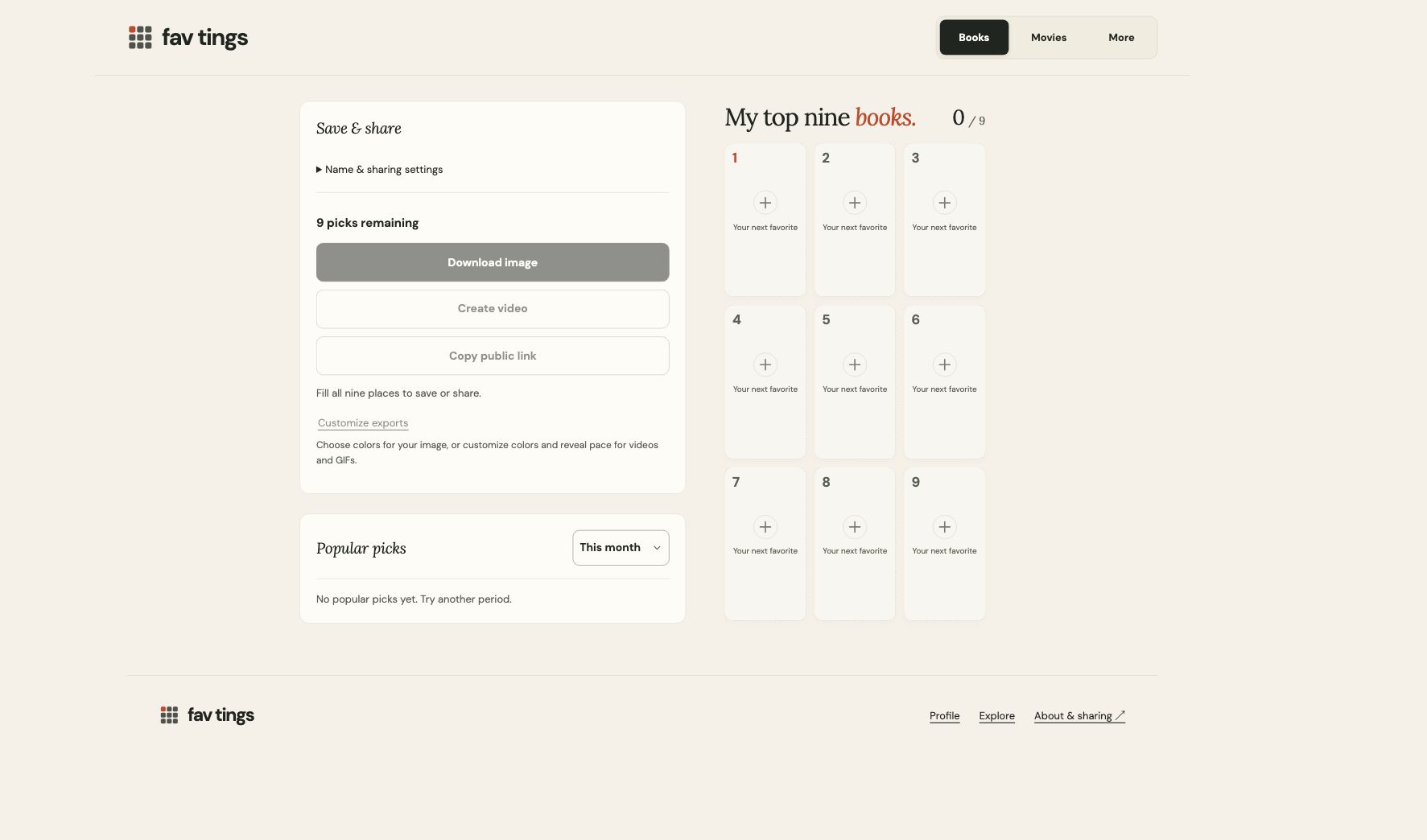
Start in the book grid maker. Choose nine picks from the catalog, put them in your order, and download an image or share the public list. You can make personal favorites or a theme; there is no need to agree with anyone else’s ranking.
1. Choose a direction
Try a shelf of lifelong favorites, books you read this year, or nine stories for a rainy weekend.
- Nine books I would lend a friend
- A year of reading
- Rainy-weekend reads
A specific theme is useful when narrowing a long list is the hard part. You can change the board title later.
2. Find and arrange your picks
Choose your nine
Select an empty place to open search. Search by book title or author. Check the title and author before choosing a result; different editions can have different covers.
Make the order yours
Drag a pick using its handle, or tap the handle and choose Move to. You can remove a pick with the trash button and undo the last change.
Empty places stay empty until you choose an item. Book information comes from Open Library. A pick may use a typographic cover when artwork is unavailable; not every edition or cover is in the catalog.
3. Check the name and sharing settings
Your title and display name are optional. Keep personal details out of anything you plan to share. In Name & sharing settings, choose whether the board belongs in Explore or should stay link-only when those options are available.
Your draft and export previews stay private. Creating a public link or preparing a final share/export publishes that version; private account saving does not. Your public link is visible to anyone who has it. Lists appear in Explore by default; choose link-only in Name & sharing settings to keep this board out of the directory. Include only a title and name you are comfortable sharing.
4. Download the grid or make a reveal
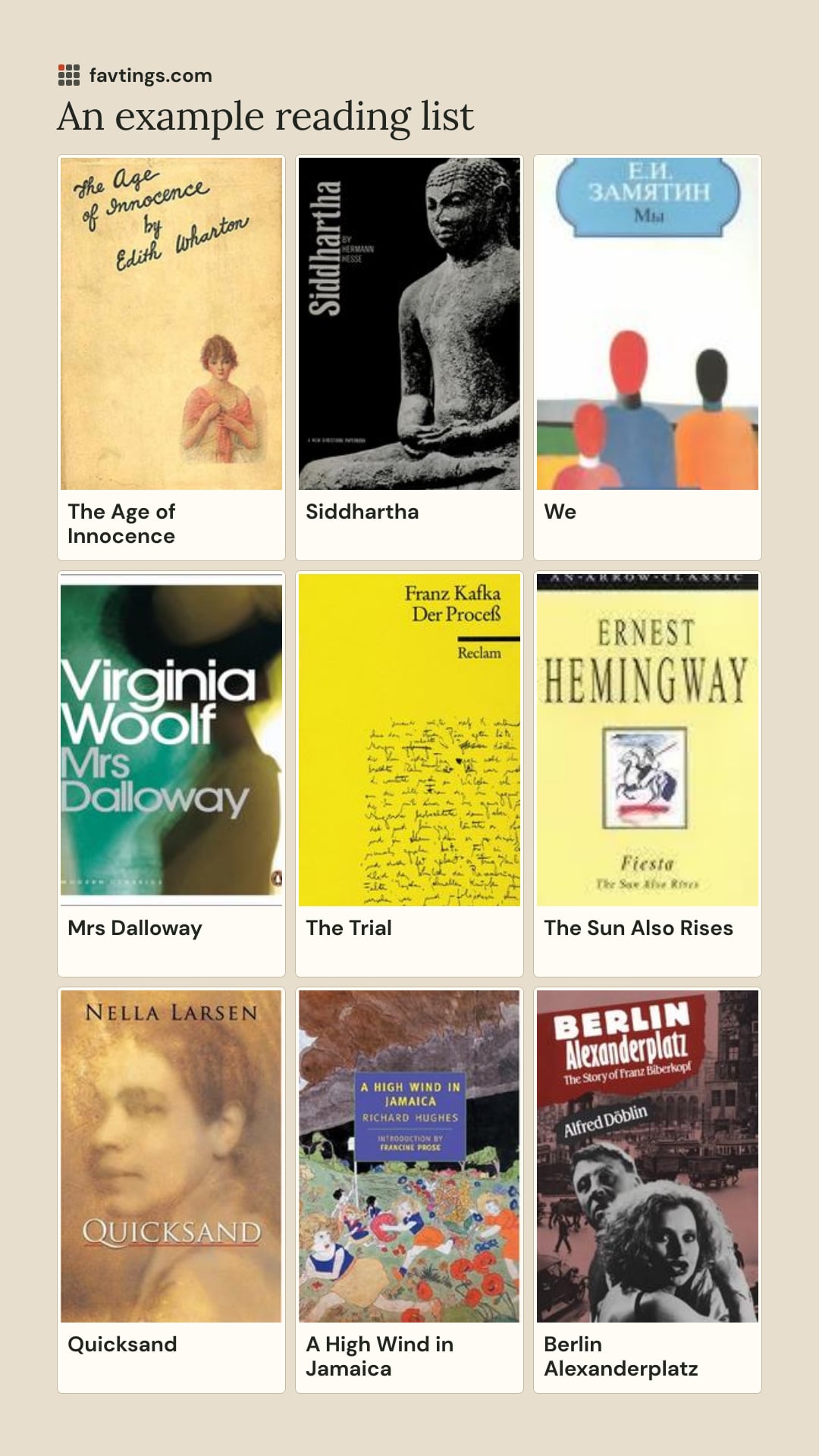
Once the nine places are filled, choose Download image. The default image is a 1080 × 1920 Story PNG: nine picks arranged inside a tall canvas. A 3×3 grid describes the arrangement, not a square file.
For an Instagram Story, upload the saved image from your device. Other placements can crop or fit it differently; check the preview before posting. Fav Tings does not post to your personal social accounts when you download a file.
Customize exports offers With title or Grid only, color palettes, and MP4 or GIF reveals. Preparation can take time. Keep the source-credit reference supplied with the export when sharing it elsewhere.
For longer boards, each complete group of nine can become an image or reveal. Remaining picks stay readable in the full list.
5. Come back to your board
No account is required. Your boards are saved on this device. Optional Google sign-in adds them to your account so you can open Profile and resume on other devices. Account drafts stay private until you explicitly share them.
Edit your picks, order, title or name and share again to update the same public link. Sign in to the same Google account and open Profile to continue on another device. Downloaded files keep their original version. Start new list creates another board. Existing snapshot-only links remain unchanged.